Student app

ClassPulse Join

Enter the join code your instructor shows, and answer questions from your own device.

No account or sign-in · No ads

Get the app

App Store

Download on the App Store
apps.apple.com/app/id6778617783
Google Play

Get it on Google Play
play.google.com/store/apps/details?id=com.amrteamtokai.classpulse_student
Web version
Open the web version

Runs in a web browser. Enter the 6-digit join code to join.

amrteamtokai.com/classpulse/web/
User guide

Join user guide (PDF)
Open the user guide
amrteamtokai.com/classpulse/manual/join_en.pdf

How it works

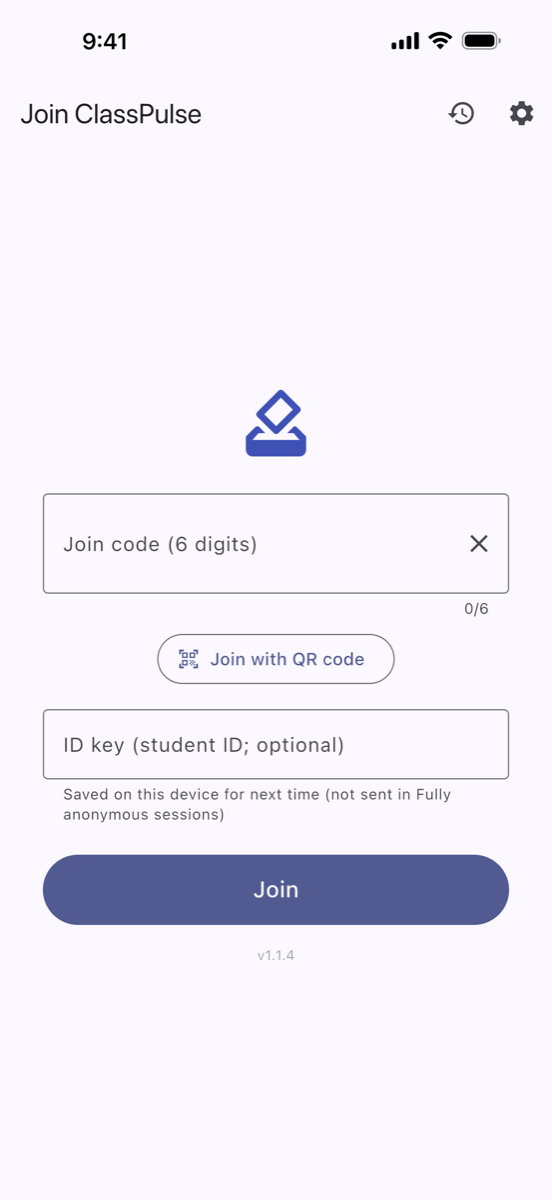
Join screen with a Join code (6 digits) field, a Join with QR code button, an ID key field, and a Join button
Enter the 6-digit join code, or scan the QR code on your instructor's screen. If the session asks for it, enter your ID key (e.g., your student ID).
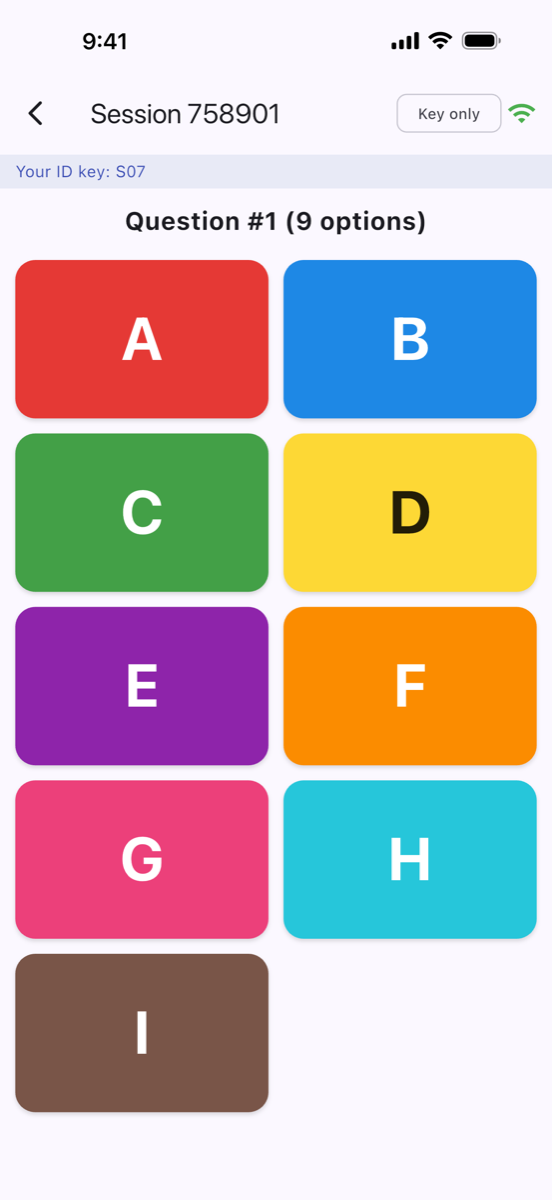
Multiple-choice question in a Key only session, with option buttons A–I
Answer each question when your instructor opens it.
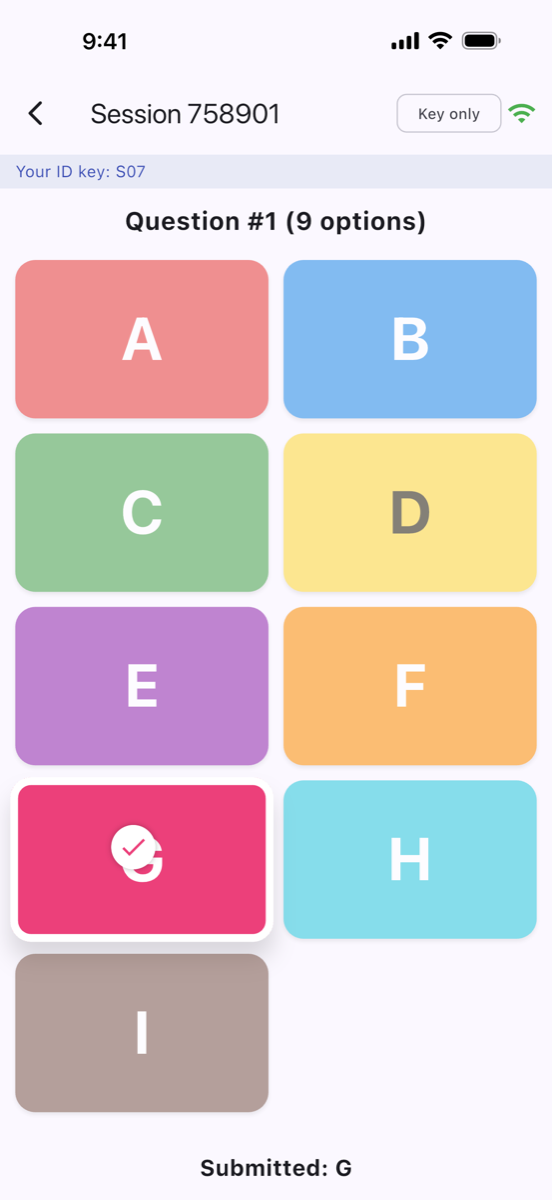
Option G selected, with Submitted: G shown below the option buttons
Change your answer and resubmit until the question closes.

What you can do

Join with a code

Enter the 6-digit join code, or scan the QR code in the app. No account or sign-in is needed.

Answer from your own device

Answer multiple-choice and free-text questions. Tap I'm here to respond to an attendance check, and take part in peer review and a course evaluation when your instructor starts them.

Automatic reconnection

If your connection drops, Join reconnects automatically and submits your pending answers again.

Participation history

Keep a participation history on your device and share it as a CSV file. The history CSV follows the app language.

Session modes

Your instructor chooses the mode for each session.

  • Named — you enter your ID key, and your instructor sees your name from their roster
  • Key only — your instructor sees your ID key, not your name
  • Fully anonymous — no ID key is sent, and your instructor sees counts and percentages only
Join needs a session run by your instructor in ClassPulse Studio. Instructors, see ClassPulse Studio.